Overview
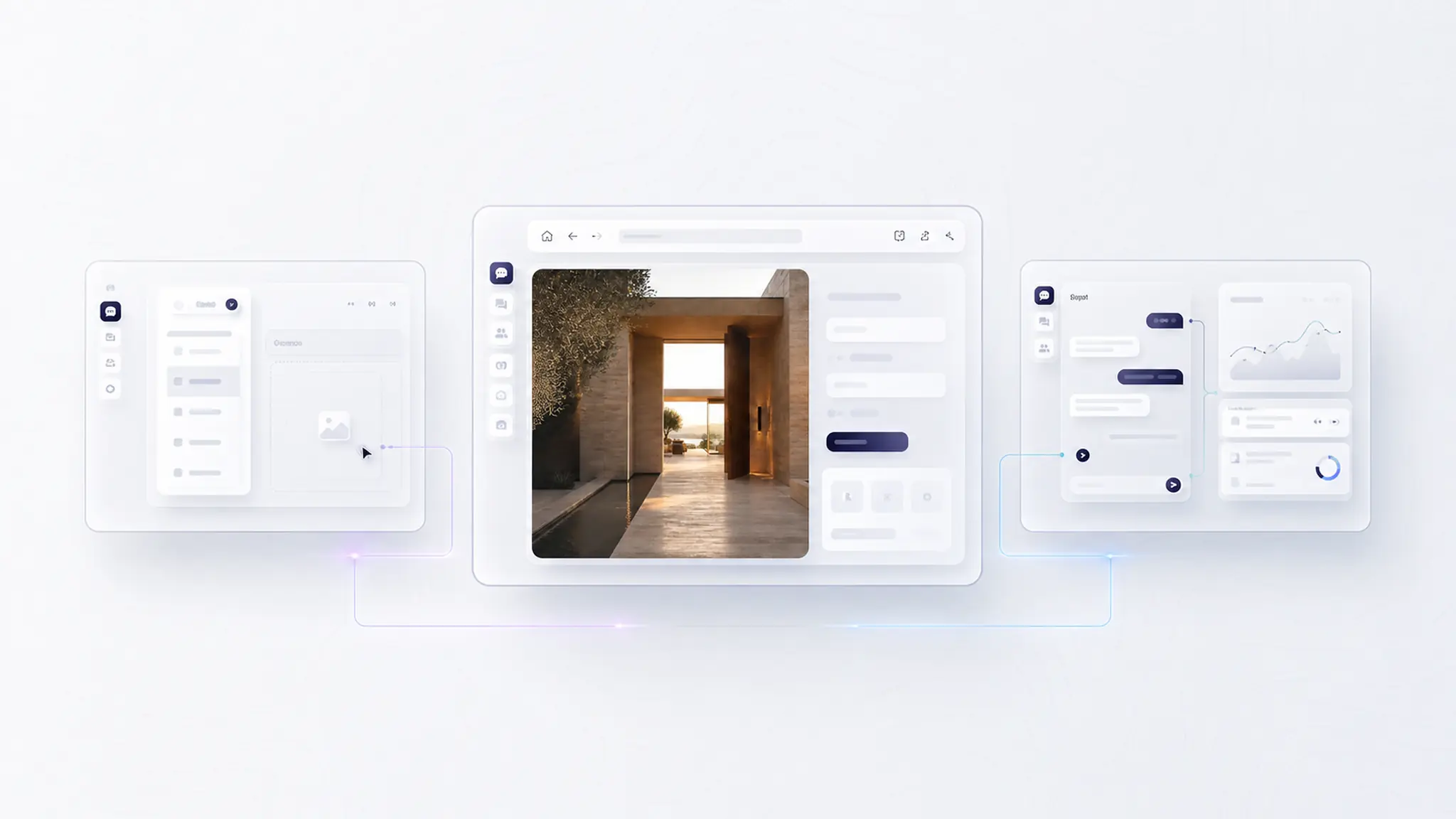
Overview: Voice & Video Calls let agents and customers talk in real time while co-browsing the same page in OXVO—ideal for onboarding, troubleshooting, and high-touch support.
Where to use it: During an active Live Co-browse session, start a voice or video call and keep the conversation, context, and customer journey in one place.
How it works
An agent starts a Live Co-browse session from an active conversation.
From the co-browse session, the agent requests a voice or video call and the customer accepts to join.
Voice/video runs alongside co-browsing so you can talk through steps while seeing the same screen—without switching tools.
Configure - implementation details
Enable Voice & Video
Voice & Video is available within Live Co-browse. If co-browse is Disabled, connect it first.
Enable Voice & Video for the teams/roles that should be allowed to start calls.
Decide whether agents can start voice-only calls, video calls, or both based on your support policy.
Run a quick test to confirm browser microphone/camera permissions and your privacy settings.
Tip: Use voice-only for sensitive workflows or low-bandwidth situations.
" height="39.999990170653746px" id="iLqrnqhpz" width="26.666660113769012px"/><path d="M 0 3.333 C 0 1.492 1.492 0 3.333 0 C 5.174 0 6.667 1.492 6.667 3.333 C 6.667 5.174 5.174 6.667 3.333 6.667 C 1.492 6.667 0 5.174 0 3.333 Z" fill="rgb(0, 0, 0)" height="6.66666502844231px" id="i6Bbyv5ct" transform="translate(10 20)" width="6.666665028442367px"/><path d="M 13.333 24.585 L 13.333 25.001 L 0 25.001 L 0 24.585 C 0 22.051 2.05 20.001 4.583 20.001 L 8.75 20.001 C 11.283 20.001 13.333 22.051 13.333 24.585 Z M 32.083 13.335 C 31.813 13.335 31.55 13.247 31.333 13.085 L 28.307 10.815 C 28.107 12.258 26.874 13.334 25.417 13.335 L 16.25 13.335 C 14.642 13.335 13.333 12.026 13.333 10.418 L 13.333 2.501 C 13.333 1.348 14.097 0.001 16.25 0.001 L 25.417 0.001 C 26.97 0.001 28.243 1.221 28.328 2.753 L 31.283 0.291 C 31.656 -0.02 32.175 -0.088 32.614 0.118 C 33.054 0.324 33.335 0.766 33.333 1.251 L 33.333 12.085 C 33.333 12.775 32.774 13.335 32.083 13.335 Z" fill="rgb(0, 0, 0)" height="25.001446448944023px" id="xzUtT4ciA" transform="translate(6.667 8.332)" width="33.333329108629265px"/></g></svg>)